

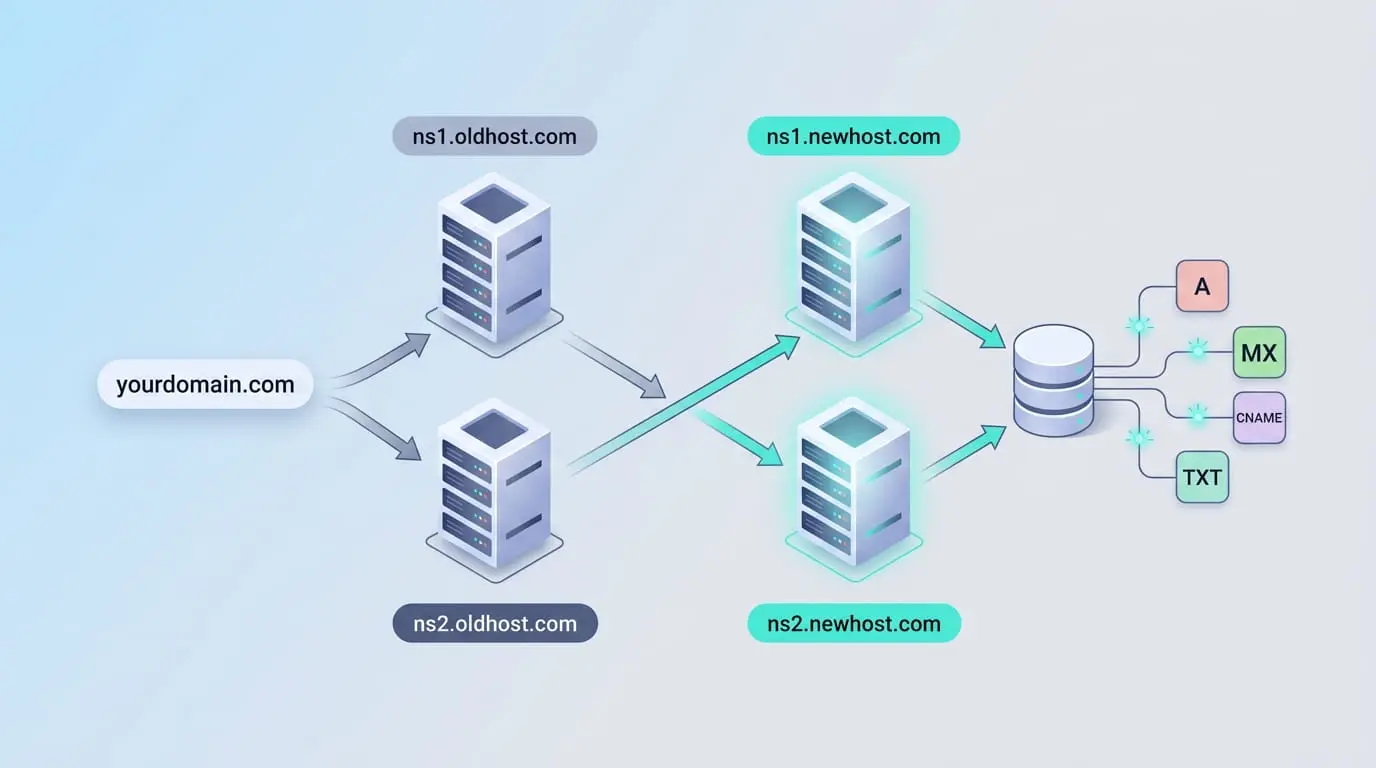
Changing nameservers is not the same as editing a DNS record
A nameserver (NS) identifies the provider authoritative for the domain’s DNS zone. Changing NS moves control of all records, including A, CNAME, MX, and TXT. Editing a DNS record keeps the current authoritative provider and changes only a service destination. Pointing a website at a new server usually requires only an A-record update; an unnecessary NS change can remove working mail and verification records.
| Requirement | Correct action | Scope |
|---|---|---|
| Give all DNS control to a new hosting provider | Change nameservers | Entire DNS zone |
| Point the website to a Cloud VPS IP | Edit A record | Root or selected host |
| Point www to the root name | Edit CNAME | www only |
| Change email provider | Edit MX and related TXT/CNAME records | Mail delivery and authentication |
| Verify domain ownership | Add supplied TXT record | Verification label |
Change nameservers in the EuroVDC client area
- Sign in to the EuroVDC client area.
- Open Domains and select the domain you intend to change.
- Open Nameservers. Save the current values in a screenshot or secure change record.
- To use EuroVDC DNS, choose the defaults displayed in the panel. They include ns1.eurovdc.eu and the matching EuroVDC nameservers shown in your client area or welcome email.
- For external hosting or DNS, enter the provider’s complete NS set with exact spelling.
- Save, read back the accepted values, and monitor propagation using authoritative DNS queries.
If similar domain names exist, verify the extension before opening one. An NS change affects only the selected domain.
Record every row before editing. Use the complete set supplied by the provider instead of entering only one nameserver.
Use panel defaults or your hosting provider’s actual NS set. Do not guess or enter reserved internal GDNS values that EuroVDC blocks customers from using as custom NS.
Check spelling. Different networks can return the old or new delegation while cached data remains valid.
Open advanced DNS and edit records
When the domain uses EuroVDC DNS and advanced management is enabled for the product, the zone is available under a path such as Domains → DNS Management. If that menu is absent, the domain may use external nameservers or the feature may not be enabled. Edit records at the authoritative provider; adding identical entries in a non-authoritative EuroVDC zone will not change public answers.
- Confirm which NS is authoritative and export or record the existing zone.
- Identify the host to change: @ commonly represents the root, while www represents that subdomain.
- Select record type and destination. Enter IP, hostname, priority, and TXT content exactly as provided.
- Set TTL to support the migration plan. Lowering it helps only after the previous TTL has expired.
- Check for conflicts, save, and verify with both authoritative and independent public resolvers.
What A, AAAA, CNAME, MX, and TXT do
| Type | Purpose | Example | Important detail |
|---|---|---|---|
| A | Maps a name to IPv4 | @ → Cloud VPS IPv4 | Prepare the new server before removing the old IP. |
| AAAA | Maps a name to IPv6 | @ → VPS IPv6 | Do not leave AAAA if the service is unavailable over IPv6. |
| CNAME | Makes one name an alias of another hostname | www → example.com | It normally cannot coexist with other records at the same host. |
| MX | Defines inbound mail server and priority | @ → mail service, priority 10 | The target must be a hostname; a wrong MX interrupts mail. |
| TXT | Publishes verification or policy text | SPF, DKIM, DMARC, site verification | Copy the supplied value without rewriting it. |
A root-domain CNAME is not supported by every DNS system; use A/AAAA unless the panel provides ALIAS, ANAME, or flattening. An MX target should not be an IP address. For SPF, combine authorized senders into one valid v=spf1 policy instead of publishing several independent SPF records at the same host.
Point to Cloud VPS or shared hosting
Cloud VPS
- Verify the VPS public IPv4 address in the EuroVDC client area or server details.
- Point the root A record to that IP.
- Use a CNAME from www to the root, or an A record to the same IP.
- Add AAAA only when IPv6, firewall, and the web service are ready.
- Configure the domain virtual host, TLS certificate, and firewall on the server; DNS alone does not configure a website.
Shared hosting
Using the nameserver set from hosting activation often allows the hosting panel to manage both web and mail records. If DNS stays elsewhere, point the root A record to the shared IP displayed by the hosting panel and add required www, email, and verification records individually. Never guess the server IP; use the service card or welcome email.
Corporate Email DNS
For EuroVDC Corporate Email, MX and required CNAME records can target securemail.eurovdc.eu. Obtain the complete record set from the email product’s DNS screen because SPF, DKIM, and DMARC values can depend on the account and chosen policy. Do not insert assumed Microsoft 365 hosts or random examples from the web. Use EuroVDC Email Connection Settings and SPF, DKIM, DMARC and Deliverability for the mail-specific workflow.
Before changing MX, create required mailboxes, aliases, and users at the destination. Monitor old and new systems during the transition. If only the website A record changes, leave MX and mail-authentication TXT records untouched.
Propagation, TTL, and caches
TTL states how long a resolver may cache an answer. Some changes appear within minutes, while worldwide caches and NS delegation can require 24–48 hours. Propagation is not a central copying job: resolvers can legitimately provide different answers until each cached TTL expires.
- Lower TTL at least one current-TTL interval before a planned migration.
- Raising it immediately after the change does not purge older caches.
- Clearing browser, computer, or router caches affects only local layers.
- If authoritative nameservers answer correctly while some users see old data, allow the TTL to expire.
- After 48 hours, persistent inconsistency warrants checks of delegation, missing zones, DNSSEC, and record conflicts.
Change checklist
- I saved the current NS set and complete DNS zone.
- I determined whether NS or only one record must change.
- I verified destination IP and hostname from the service panel.
- I considered web, email, and verification records together.
- I checked authoritative DNS answers after saving.
- I tested root/www access, inbound/outbound email, and TLS.
- I retained previous values and the change time for rollback.
If defaults are absent, custom NS is rejected, or results remain incorrect after 48 hours, send the domain, expected record type, and a password-free screenshot to support@eurovdc.eu.